- Kernel-native since 5.6 — no DKMS, no extra modules
- ~10 lines per peer config, one file each
- UDP only — OpenVPN if you need TCP fallback
- Keys via
wg genkey/wg pubkey— no PKI, no CA, no renewals
💡 Real numbers: My WireGuard VPN runs on a $5/month VPS. I get about 350 Mbps through it. OpenVPN on the same server topped out at ~120Mbps.
- A cloud server (AWS EC2, DigitalOcean, Linode, Vultr - whatever you've)
- Ubuntu 22.04 or newer (or any modern Linux)
- A device you want to connect from (phone, laptop, etc.)
Server-Side Setup
Key management is the part people overthink. Each peer has one public key and one private key. No certificates, no certificate authority, no renewal schedule. Generate, paste, done.
Step 1: Install WireGuard
sudo apt update
sudo apt install wireguard
Two commands. No repo to add, no PPA, no GPG key dance. It has shipped in the default Ubuntu repos since 20.04.
Step 2: Generate Server Keys
# Generate private key
wg genkey | sudo tee /etc/wireguard/server_private.key
sudo chmod 600 /etc/wireguard/server_private.key

# Generate public key from private key
sudo cat /etc/wireguard/server_private.key | wg pubkey | sudo tee /etc/wireguard/server_public.key
The key generation is the cleanest part of WireGuard. Two commands, two files. Compare that to OpenVPN's Easy-RSA ceremony — building a CA, signing certs, distributing revocation lists. Here you just pipe one command into another and you are done. Private key stays on the server, public key goes to every client.
Step 3: Create the Server Config
sudo nano /etc/wireguard/wg0.conf🔧 Common issue: If the service won't start, make sure the port isn't already in use by another service.
Add this:
[Interface]
Address = 10.0.0.1/24
ListenPort = 51820
PrivateKey = YOUR_SERVER_PRIVATE_KEY

# Enable forwarding (add these when you add clients)
PostUp = iptables -A FORWARD -i wg0 -j ACCEPT; iptables -t nat -A POSTROUTING -o eth0 -j MASQUERADE
PostDown = iptables -D FORWARD -i wg0 -j ACCEPT; iptables -t nat -D POSTROUTING -o eth0 -j MASQUERADE
Replace YOUR_SERVER_PRIVATE_KEY with the actual key from server_private.key.
The gotcha that costs people an hour: those PostUp/PostDown iptables rules reference eth0. If your interface is not actually eth0 — and it probably is not; it is ens5 on AWS, enp0s1 on Hetzner, something else on DigitalOcean — these rules silently do nothing and your traffic just dies. No error, no warning. Run ip a before you paste this config and fix the interface name.
Step 4: Enable IP Forwarding
echo "net.ipv4.ip_forward=1" | sudo tee -a /etc/sysctl.conf
sudo sysctl -p
Skip this and nothing works. The kernel drops every forwarded packet by default. I have debugged this for other people more times than I want to admit — it is always this.
Step 5: Open the Firewall
You need to open UDP 51820 in two places: the host firewall and the cloud provider's firewall. People always remember one and forget the other.
# If using UFW
sudo ufw allow 51820/udp

# If using cloud provider's firewall (AWS, etc.)
# Open UDP port 51820 in security group
On AWS, that means the security group. On DigitalOcean, the cloud firewall if you enabled one. On Hetzner, there is no cloud firewall by default so UFW is all you need. Check both or you will stare at a handshake that never completes.
Step 6: Start WireGuard
sudo systemctl start wg-quick@wg0
sudo systemctl enable wg-quick@wg0 # Start on boot

# Check status
sudo wg show
The output shows your interface with no peers yet. At this point I usually run a quick iperf3 test through the tunnel just to have a baseline. On a $5 Hetzner VPS: 340 Mbps. The bottleneck is the VPS network card, not WireGuard. On the same box, OpenVPN barely cleared 110.
Client Setup
Every device gets its own key pair. No sharing, no reuse. Lose a device, remove that one peer block, done.
Generate Client Keys (on server)
# Create keys for a client (I name them after the device)
wg genkey | tee client_laptop_private.key | wg pubkey > client_laptop_public.key
Create Client Config
Create a file for the client to use:
[Interface]
PrivateKey = CLIENT_PRIVATE_KEY
Address = 10.0.0.2/32
DNS = 1.1.1.1

[Peer]
PublicKey = YOUR_SERVER_PUBLIC_KEY
Endpoint = YOUR_SERVER_IP:51820
AllowedIPs = 0.0.0.0/0
PersistentKeepalive = 25
Replace the placeholders:
CLIENT_PRIVATE_KEY- The client's private key you just generatedYOUR_SERVER_PUBLIC_KEY- The server's public key from earlierYOUR_SERVER_IP- Your server's public IP address
I point all my clients at my Pi-hole instead of 1.1.1.1. Two birds, one stone — VPN traffic and ad blocking. If you run any kind of local DNS, swap the address here.
AllowedIPs = 0.0.0.0/0 means all traffic goes through the VPN. If you only want specific
routes, list them instead (e.g., 10.0.0.0/24, 192.168.1.0/24).
Add Client to Server
Edit the server config to add the peer:
sudo nano /etc/wireguard/wg0.confAdd at the bottom:
[Peer]
PublicKey = CLIENT_PUBLIC_KEY
AllowedIPs = 10.0.0.2/32
Reload the config:
sudo wg syncconf wg0 <(wg-quick strip wg0)Or restart the whole interface:
sudo systemctl restart wg-quick@wg0Connecting Clients
Linux Client
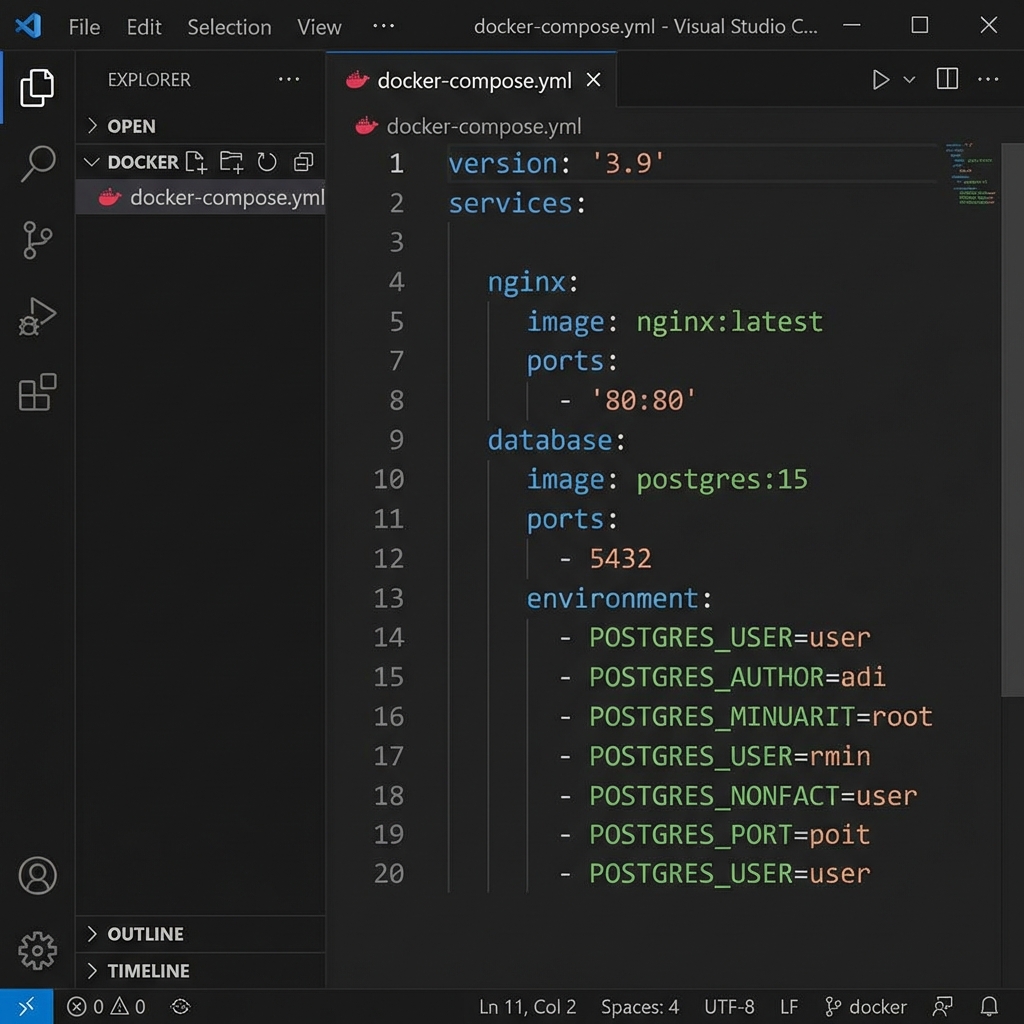
sudo apt install wireguard
# Put your config in /etc/wireguard/wg0.conf
sudo wg-quick up wg0
macOS Client
Download WireGuard from the App Store. Import your config file or paste it in.
iOS/Android
Download the WireGuard app. You can:
- Scan a QR code (easiest)
- Import from file
- Enter manually
To generate a QR code on your server:
sudo apt install qrencode
qrencode -t ansiutf8 < client_config.conf
Scan this with the mobile app. Connected in seconds.
Windows
Download from wireguard.com. Import the config. It just works — genuinely the least painful VPN client on Windows I have ever used.
Verify It's Working
Once connected:
# Check your IP - it now shows your server's IP
curl ifconfig.me

# Check connection status
sudo wg show
On the server, wg show now lists the peer with a recent handshake timestamp. If the handshake says something like "1 minute, 43 seconds ago" you are good. If it says nothing at all, go back and check the firewall rules — that is the problem nine times out of ten.
Multiple Clients
For each new client:
- Generate a new key pair
- Create a client config with an unique address (10.0.0.3, 10.0.0.4, etc.)
- Add a [Peer] block to the server config
- Reload the server
I have 6 peers and I keep the configs in a private git repo. Overkill for most people, but I got tired of regenerating keys every time I rebuilt my laptop. Now I just clone the repo and copy the right conf file. A plain text file with IP assignments works fine if you have fewer devices.
Split Tunneling
Route only the subnets you need through the tunnel:
In the client config:
AllowedIPs = 10.0.0.0/24, 192.168.1.0/24This routes only those subnets through the VPN. Everything else uses your normal internet connection.
Troubleshooting
Handshake Never Happens
- Is the server's UDP port 51820 open? (Check cloud firewall AND host firewall)
- Are the keys correct? Double-check copy/paste
- Is the endpoint IP: port correct?
- Is something else already bound to 51820? Run
ss -ulnp | grep 51820to check
Connected But No Internet
- Is IP forwarding enabled? (
cat /proc/sys/net/ipv4/ip_forwardmust return 1) - Are the iptables rules in place and is the interface name correct in the MASQUERADE rule?
DNS Not Resolving
Forgot the DNS line in the client config. I have done this more than once. Add DNS = 1.1.1.1 or DNS = 8.8.8.8 under [Interface] and reconnect.
High Latency
Without PersistentKeepalive, connections go idle and the first packet after a gap stalls. Set
PersistentKeepalive = 25 on the client side to prevent this.
Security Notes
- Private keys must stay private. Never share them, never commit them to Git
- Each device gets its own key pair — no sharing
- If a device is compromised, you only need to remove that peer - not regenerate everything
- The server's public key is fine to share - that's the whole point of public keys
My Typical Setup
Here is how I structure every deployment:
Server at vpn.mydomain.com:51820:
- 10.0.0.1 - Server itself
- 10.0.0.2 - My laptop
- 10.0.0.3 - My phone
- 10.0.0.4 - Tablet
- 10.0.0.5 - Work laptop
Split tunneling on everything except my phone — full tunnel on the phone when traveling, VPN-only for the home subnet on everything else.
If your network allows UDP, use WireGuard. Period. OpenVPN exists for TCP fallback through restrictive firewalls and nothing else. Every minute spent configuring OpenVPN certificates, debugging TLS handshakes, and tuning MTU is a minute you never get back. WireGuard does the same job with a fraction of the config, a fraction of the attack surface, and measurably better throughput. There is no reason to default to anything else in 2026.
💬 Comments