| Distro Family | Manager | Install Cmd | Update Cmd |
|---|---|---|---|
| Debian/Ubuntu | apt |
apt install pkg |
apt update && apt upgrade |
| Fedora/RHEL | dnf |
dnf install pkg |
dnf upgrade |
| Arch/Manjaro | pacman |
pacman -S pkg |
pacman -Syu |
How Package Installation Works
Every Linux distro keeps a list of trusted software sources. These are called repositories. When you install something, the package manager checks that list, not the open internet.
Running apt install vlc triggers a specific sequence:
- Database lookup — the local package cache is searched for a match
- Dependency resolution — VLC needs codecs, which need libraries, which may need other libraries. The manager traces the full chain automatically.
- Download — everything pulled from your configured repos
- Signature verification — tampered packages get rejected
- File placement — binaries land in /usr/bin, configs in /etc, libraries in /usr/lib
- Post-install hooks — user creation, directory setup, service registration if needed
One command later, a security patch reaches every package on the system. That's the payoff.
APT, DNF, and Pacman
APT (Debian/Ubuntu)
APT covers Ubuntu, Debian, Linux Mint, Pop!_OS, and all their derivatives. By sheer install-base numbers, this is the one most people hit first.
The two commands you'll run before anything else:
# Refresh the local package index — do this before every install session
sudo apt update

# Upgrade everything that has a newer version available
sudo apt upgrade
That pair handles 80% of maintenance. For the rest:
# Install one or several packages
sudo apt install htop neofetch curl
sudo apt install nginx certbot python3-certbot-nginx

# Remove a package (keeps config files behind)
sudo apt remove htop

# Remove a package AND wipe its config files
sudo apt purge htop

# Search — no sudo needed, this is read-only
apt search "text editor"

# Detailed info on a specific package
apt show nginx

# Which installed packages have pending upgrades?
apt list --upgradable

# Drop orphaned dependencies
sudo apt autoremove
A word on autoremove: always read the list it prints before pressing Y. I once lost a desktop environment that way because a meta-package got unlinked during a dist-upgrade. Took an hour to sort out.
apt vs. apt-get: Both exist. apt gives progress bars and friendlier output, designed for interactive use. apt-get has more stable, parseable output, so scripts should stick with that. For typing commands by hand, apt is fine.
DNF (Fedora/RHEL)
Fedora, RHEL, CentOS Stream, Rocky Linux, AlmaLinux. Enterprise shops land here more often than not.
# See what's upgradable without changing anything
sudo dnf check-update

# Apply all available upgrades
sudo dnf upgrade

# Install / remove
sudo dnf install htop
sudo dnf remove htop

# Search and inspect
dnf search "web server"
dnf info nginx

# Which package provides a given binary?
dnf provides /usr/bin/dig

# Wipe cached data
sudo dnf clean all
DNF replaced YUM around 2015. Old yum commands still work on most systems because DNF maintains backward compatibility, but there's no reason to keep using them. If a tutorial references yum, just swap in dnf.
Pacman (Arch)
Arch, Manjaro, EndeavourOS. The flags look cryptic but follow a pattern: -S = sync (repos), -R = remove, -Q = query (local).
# Full system upgrade — always use -Syu, never -Sy alone
sudo pacman -Syu

# Install / remove
sudo pacman -S htop
sudo pacman -Rs htop

# Search repos / query installed
pacman -Ss "text editor"
pacman -Qi htop
Never run pacman -Sy package without the -u flag. Partial upgrades on Arch break things fast.
Cross-Distro Reference Table
Same tasks, different syntax.
| Task | APT (Ubuntu/Debian) | DNF (Fedora/RHEL) | Pacman (Arch) |
|---|---|---|---|
| Update package list | apt update |
dnf check-update |
pacman -Sy |
| Upgrade all packages | apt upgrade |
dnf upgrade |
pacman -Syu |
| Install package | apt install pkg |
dnf install pkg |
pacman -S pkg |
| Remove package | apt remove pkg |
dnf remove pkg |
pacman -R pkg |
| Search packages | apt search term |
dnf search term |
pacman -Ss term |
| Clean cache | apt clean |
dnf clean all |
pacman -Sc |
Common Mistakes
Stale Package Lists
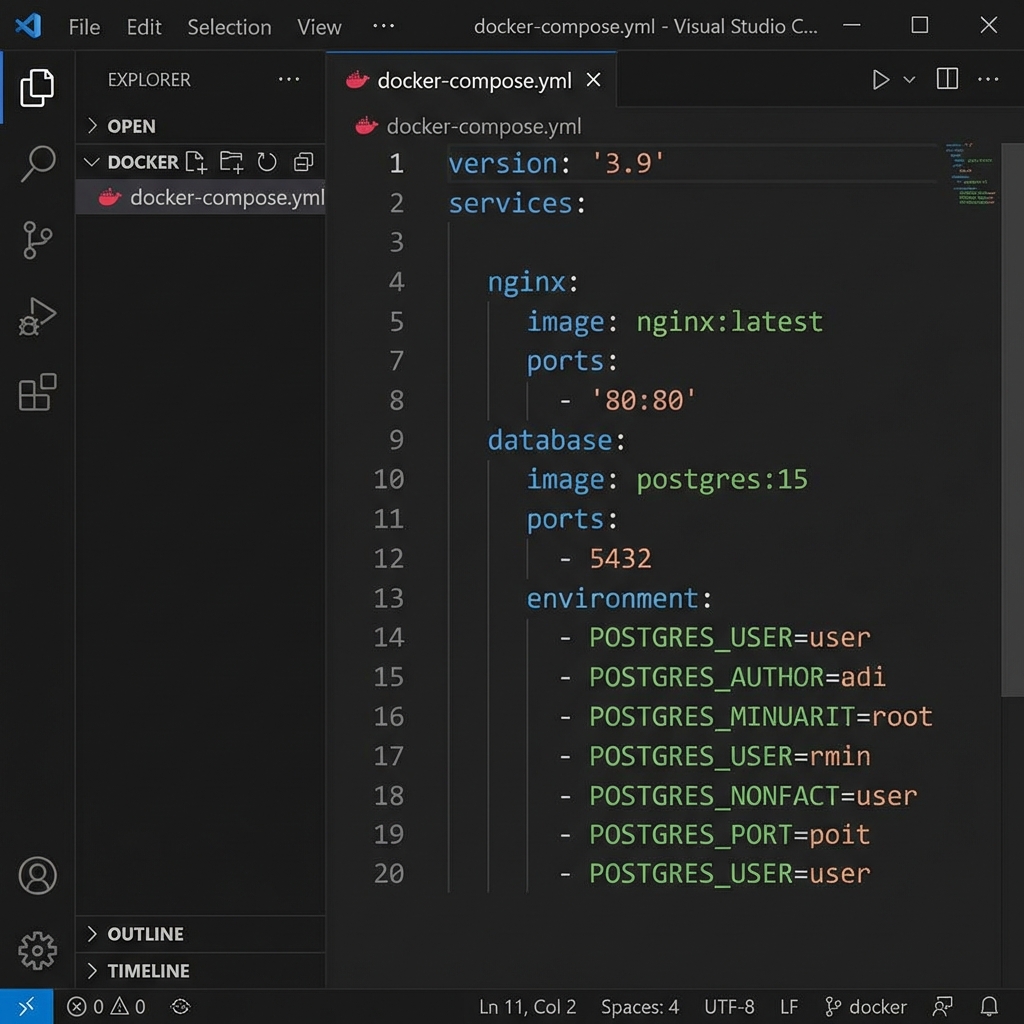
You try to install something. "Package not found." The package exists — your local index is just weeks out of date. Run sudo apt update (or the equivalent for your distro) before installing anything on a machine that's been sitting idle. This trips people up constantly.
Untrusted Repositories
Tutorials love telling you to add PPAs and third-party repos. Every repo you add is a source with write access to your system's packages. Abandoned repos break dist-upgrades. Check official repos first, always.
Unnecessary sudo
Read-only commands — apt search, apt show, apt list — don't need root. Save sudo for when you're actually changing something.
Ignoring Held-Back Packages
"X packages have been kept back." That means those packages need new dependencies or have conflicts that a simple apt upgrade won't resolve. Run apt full-upgrade to handle it, or investigate manually if that fails.
Useful Extras
Installing .deb Files
Downloaded a .deb for Discord or VS Code? Use apt to install it so it gets tracked properly:
sudo apt install ./filename.debDouble-clicking it through a GUI file manager works too, but this way the package manager knows about it for future upgrades.
Finding Which Package Provides a Command
"command not found" — now what? Each distro has a way to reverse-lookup:
# Debian/Ubuntu (install apt-file first, then apt-file update)
apt-file search /usr/bin/dig

# Fedora
dnf provides /usr/bin/dig

# Arch
pacman -F dig
Pinning a Package Version
Need to freeze a package at a specific version? On Debian/Ubuntu:
sudo apt-mark hold package-name
# Later, to release the hold:
sudo apt-mark unhold package-name
Why This Exists
Package maintainers — mostly volunteers — test that packages work together, write install scripts, handle conflicts, and keep things compatible so millions of users don't have to. The entire system rests on that unpaid labor.
Flatpak, Snap, and AppImage
These are not replacements for APT/DNF/Pacman. They solve a different problem.
- Flatpak — sandboxed, cross-distro desktop apps. Heavier on disk, but good isolation.
- Snap — Canonical's take on the same concept. Auto-updates well. Community opinion is split.
- AppImage — single file, no install. Download it,
chmod +x, run. Handy for testing something without commitment.
Use native packages for system-level software. Consider these three for desktop apps where you want sandboxing or the latest version regardless of distro release cycle.
Cheat Sheet
| What you want to do | APT | DNF | Pacman |
|---|---|---|---|
| Refresh package index | sudo apt update |
sudo dnf check-update |
sudo pacman -Sy |
| Upgrade everything | sudo apt upgrade |
sudo dnf upgrade |
sudo pacman -Syu |
| Install a package | sudo apt install pkg |
sudo dnf install pkg |
sudo pacman -S pkg |
| Remove a package | sudo apt remove pkg |
sudo dnf remove pkg |
sudo pacman -Rs pkg |
| Search for a package | apt search term |
dnf search term |
pacman -Ss term |
| Package info | apt show pkg |
dnf info pkg |
pacman -Si pkg |
| Clean cache | sudo apt clean |
sudo dnf clean all |
sudo pacman -Sc |
| Install local .deb/.rpm | sudo apt install ./file.deb |
sudo dnf install ./file.rpm |
Use makepkg / AUR |
| Hold/pin a version | sudo apt-mark hold pkg |
dnf versionlock add pkg |
Add to IgnorePkg in pacman.conf |
💬 Comments